Download & install SinoBee
Docker is the one-line recommended setup; you can also install it natively to control your own desktop.
Want a look before installing? Try the SinoBee agent at agent.sinobee.ai.
Requirements
Windows, macOS or Linux — just Docker Desktop or Docker Engine.
For the native install; on macOS and Windows SinoBee can control the real desktop.
On Apple Silicon install Ollama natively; with an NVIDIA GPU use the bundled Ollama container.
Docker (recommended)
Install Docker first, then clone and start SinoBee with one command:
git clone https://github.com/CAFECA-IO/SinoBee.git && cd SinoBee
docker compose up -d --build
Open http://localhost:10024 — setup opens automatically the first time.
Under Settings → Model providers, paste an API key and press “Connect”: SinoBee verifies it and loads that provider's models, then pick the main, auxiliary, escalation and fallback models above. Keys stay in secrets.json on the server, only the last four characters are shown, and nothing is written to .env.
SINOBEE_MODEL=anthropic/claude-sonnet-4-5 \
ANTHROPIC_API_KEY=sk-ant-... \
docker compose up -d --build
Local models
No API bills and your data stays home: run open models locally, free and keyless.
macOS (Apple Silicon)
On a Mac install and open Ollama first (uses the Metal GPU), then start SinoBee — it connects to host.docker.internal:11434 automatically:
SINOBEE_HOST_HARDWARE="$(scripts/host-hardware.sh)" docker compose up -d --buildWindows / Linux
SINOBEE_HOST_HARDWARE="$(scripts/host-hardware.sh)" docker compose --profile local-llm up -d --buildWith an NVIDIA GPU add the GPU compose file:
SINOBEE_HOST_HARDWARE="$(scripts/host-hardware.sh)" \
  docker compose -f docker-compose.yml -f docker-compose.gpu.yml --profile local-llm up -d --build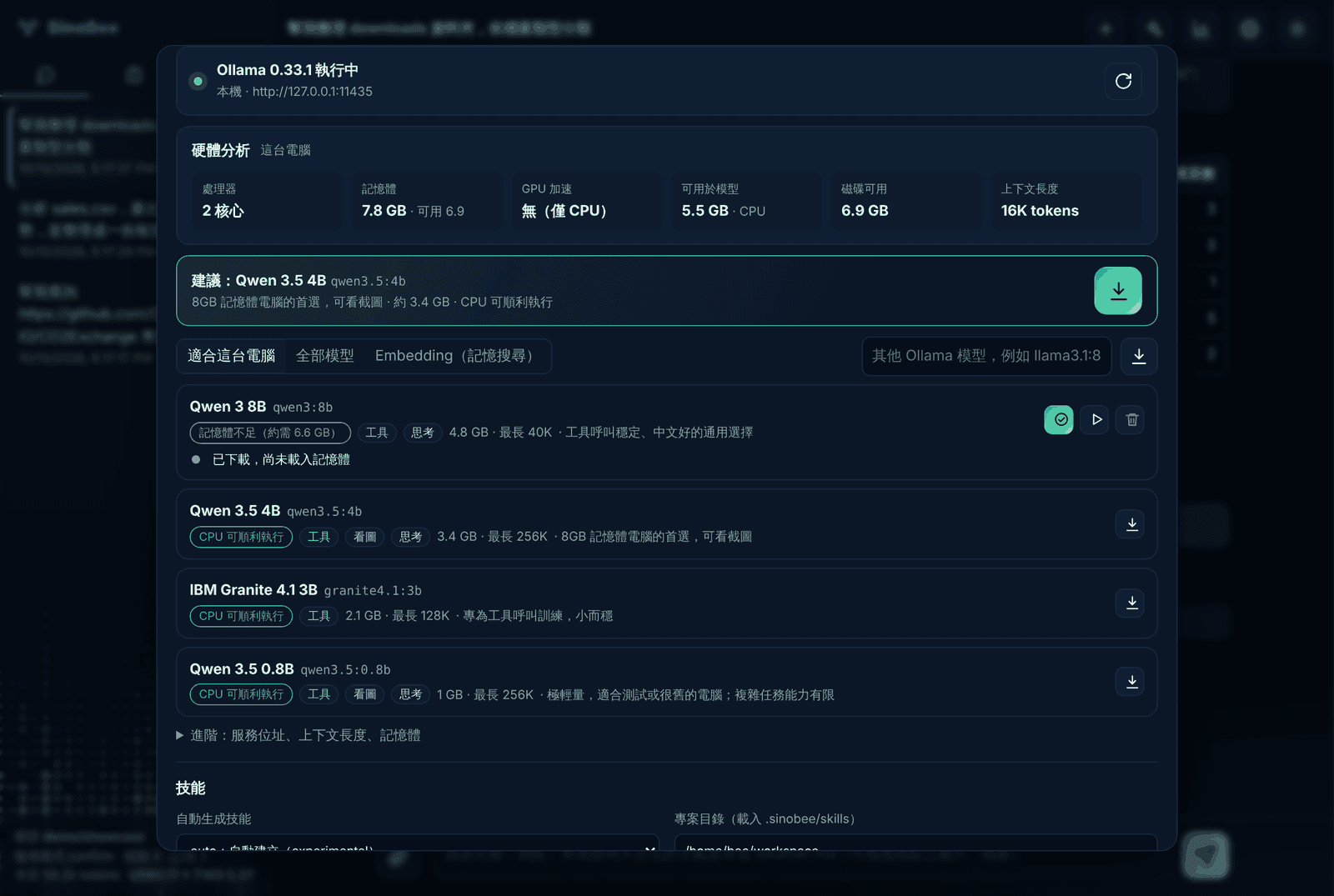
Without Docker
Requires Python 3.10 or later. Run the install script once, then use the sinobee command from any folder:
git clone https://github.com/CAFECA-IO/SinoBee.git && cd SinoBee
bash scripts/install-command.sh   # venv + dependencies + `sinobee` command on your PATH
sinobee serve                     # from any folder: http://localhost:10024
Or install manually:
pip install -e ".[all]"          # macOS/Windows desktop control: ".[all,desktop-native]"
python -m playwright install chromium
sinobee serve --port 10024
On macOS grant the terminal Accessibility and Screen Recording in System Settings → Privacy & Security. On a physical machine keep the approval mode on confirm.
First run
- Open Settings → Models: paste any provider's key under Model providers and press “Connect”, or open Ollama (local) to download a model; then choose the main model. Cloud and local models can be mixed.
- Describe the result in plain words — the more specific the better, e.g. “make it a table”, “save as report.md”, “make a 30-second product ad”.
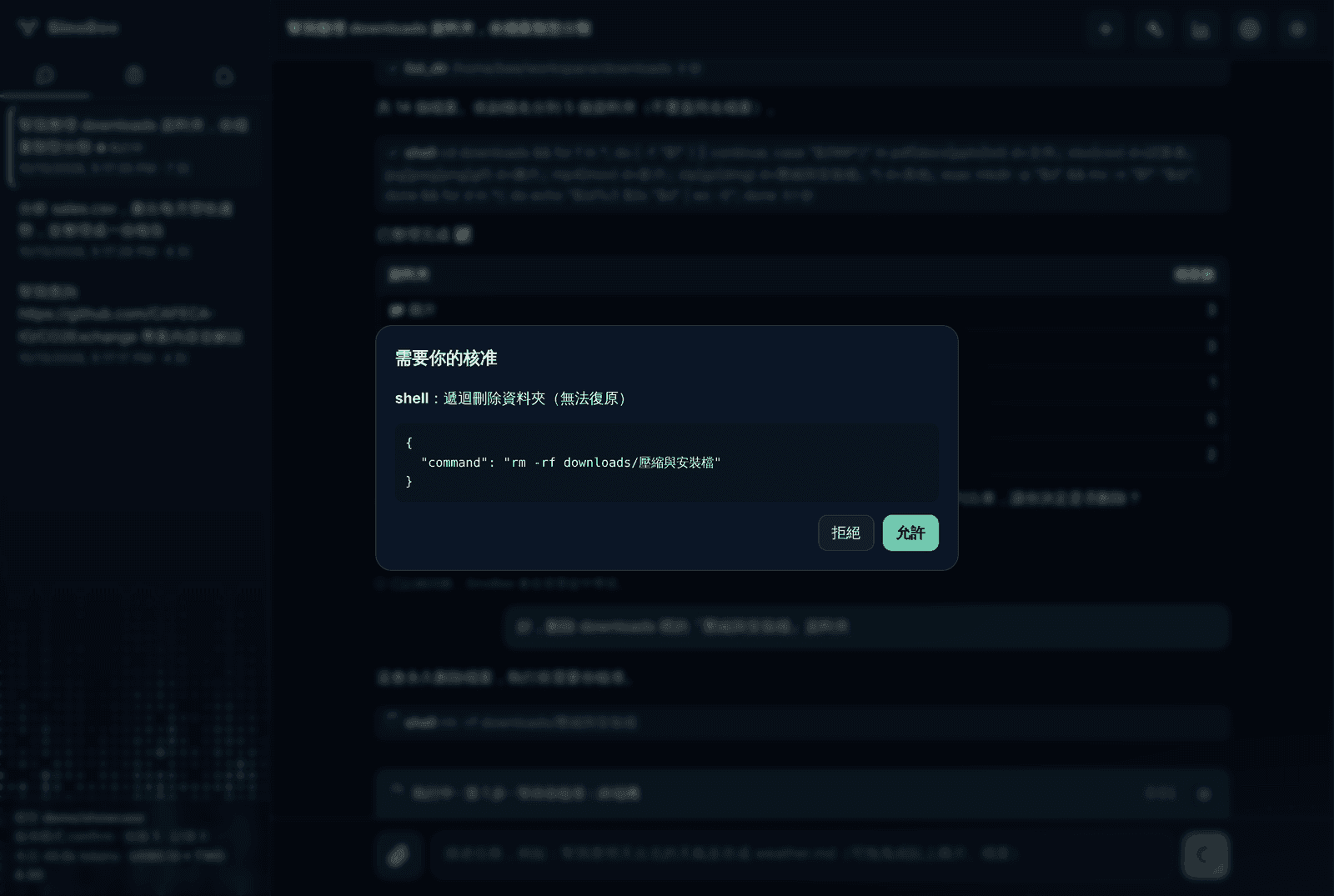
- Risky actions show an approval card: allow, deny, or switch to read-only. While a task runs you can type extra instructions or press stop.
- Leave long or recurring work to the Work tab: fixed workflows, sub-agents and schedules live there, with progress and output files at a glance.
- Rate results with thumbs up/down; SinoBee updates its memory and skills. Memory is tidied automatically, and the Memory tab lets you view, pin or delete entries.
CLI & Skill Hub
sinobee serve                                       # Web UI + API on http://localhost:10024
sinobee chat -m anthropic/claude-sonnet-4-5        # terminal chat
sinobee run "整理 ~/Downloads 裡的 PDF 並列出清單"
sinobee doctor                                      # check models, browser, desktop
sinobee keys list|set <provider>|rm <provider>
sinobee skills search <keyword>                     # search sinobee.ai Skill Hub
sinobee skills install hub:<publisher>/<name>[@version]
sinobee skills publish <name>                       # needs: sinobee keys set sinobee-hub
sinobee usage month --by model
sinobee work                                        # background work: past / now / next
sinobee memory stats|maintain|compress              # layered memory upkeep
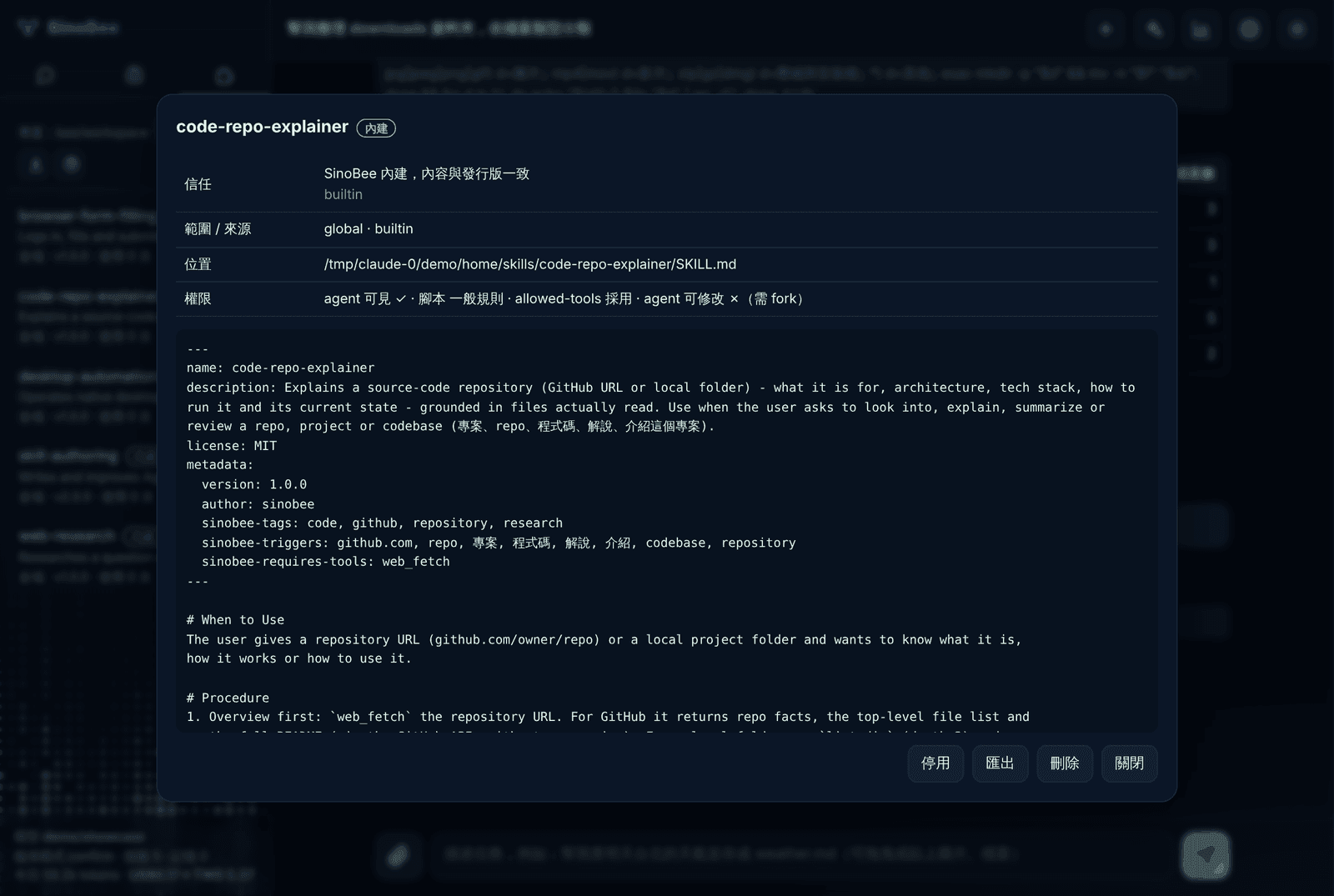
SinoBee ships with a Skill Hub client. To trust this Hub’s review signatures, pin its public key in your config:
# ~/.sinobee/config.yaml
skills:
  hub_url: https://sinobee.ai
  hub_keys: ["<key from https://sinobee.ai/.well-known/sinobee-hub-keys.json>"]